Ipad Pro 2020 tempered glass vs paperlike screen protector

Biggest misconception that people have about screen protectors is that they are used by only 2 kinds of people.
• First one, that it is only used by pros for artistic work in that case something like paperlike which makes writing on ipad screen , like you are writing on actual real paper.
• Second category of people are not artists and pros and wont be drawing or sketching on their iPads. So, they go for glass screen protectors beacuse they just want something that will protect the screen from daily scuffs and use.
However, there is third category, like me who are not pros but use their device for taking notes, editing photos and videos and also use them for media consumption.
Good evening everyone on this fine evening. Welcome back for another blog. If you are here for the first time “Welcome” it is lovely to have you. My name is Navi and I like to express my views about investing and tech. If you like any of these topics or like be both of them then please subscribe for continued engagement.
“Today I am going to tell you why I changed screen protector on MY IPAD PRO 2020 11 inch model”.
If you have found the perfect screen protector for your device then congratulations. However, if you are on the fence like most of the people, like I was, this video will help you to undersatnd pros and cons of different types on screen protectors and will help you to make the decision on which one you want.
For those of you who are wondering what screen protector I already have on and why am I getting the other one.
So, currently I have got “Glass screen protector” from brand name “Ozero” they are pretty inexpensive, good quality and easy to install.
**Sad music in background ** I have not recorded the video of installing that one because I never thought I would change it and will make a write a blog or create a video about it.
I installed it as soon as I bought my iPad in April, and have been using it for little over a month now. My thought process behind getting a glass screen protector rather than a matte finish one was that I will only use it for taking notes and I thought I will not mind writing on glass screen. Moreover, it will provide great protection because apple products tend to get lot of small scratches over time. My last iPad had lot of these small scratches or scuffs.
Although it did provide me with great picture clarity, I noticed quickly that I am getting lot of light reflection. I tried to still ignore it for very long time but I got annoyed with it as I am working from home nowadays and my work desk gets lots of natural light. Even while reading outdoors it was not a pleasant experience.
Ok, at this point lets recap things that made me change my my mind.
1. Screen reflection

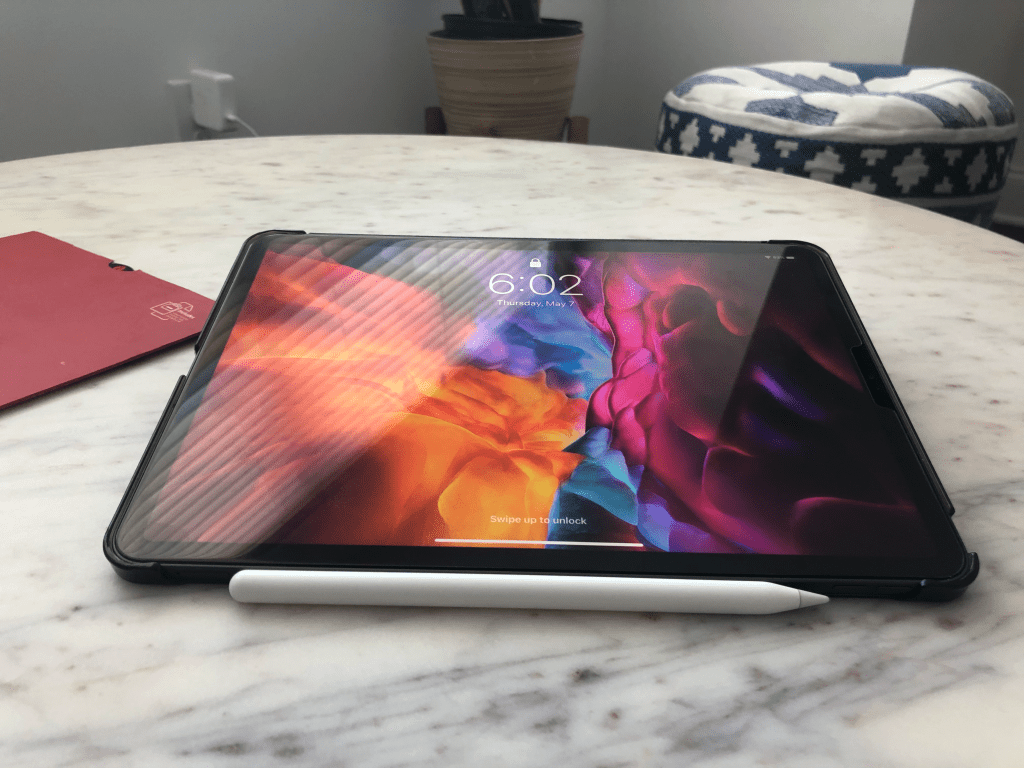
2. Difficulty in reading
3. Writing on glass surface
There are few other issues as well like too much… I really mean too much fingerprint marks but I don’t consider that to be a deal breaker. So, I began my search for a perfect screen protector that will overcome these shortcomings.
I read and saw lot of reviews online. I think it is good time to mention that I purchased both the products with MY OWN MONEY and they are not sponsored in any way.
There were few options, one that I guess you all know by now ; Paperlike – It is all over the internet.
It is pretty expensive for screen protector and I couldn’t justify paying something like $34 for it. Moreover, there are some pretty bad reviews I read on reddit.
So, I went with budget options and decided to get iCarez paperlike screen protector. I think it was like 8 bucks on amazon ( https://amzn.to/3631OQy ). I took out the old Orzero glass screen protector and put this icarez matt finish screen protector. I will fast forward the video as you can see how I installed it. It was not crazy difficult to install but requires way more efforts than the glass one.
First thing I noticed which I liked was – No more screen reflection, Way way better than the glass one. It does feel like you are writing on paper because of sound it produces when you write on it but not actually like writing on paper. But still better than the glass one. Reading indoors and outdoor is like charm, I love it so much that I have actually started using it for reading more.
So, it did overcome the issues I was facing with glass protector but it came with one disadvantage. You will notice like grainy texture on your screen, defiantly brightness is slightly lower and screen clarity has some of that texture.
But, I knew this beforehand and it doesn’t affect me that much. Advantages over weigh the disadvantage it has for me.
So, if you find this blog useful in anyway, please go ahead and like it. Please consider subscribing for more content like this.
Dont forget to mention in comments which one you purchased and why ?
You will find a video review on the same topic in the description below for more detailed analysis.
Stay safe and healthy!
Affiliate links to products in this blog:
Amazon.in Links:
iCarez matte screen protector – https://amzn.to/34oYqAv
iPad Pro 11 inch 2020 – https://amzn.to/3j4Xup9
iPad Pro cases – Apple Keyboard – https://amzn.to/34mSvvX
Urban Armor Gear UAG – https://amzn.to/2CSfq73
And if you don’t want to spend too much and dont need a keyboard then I really like this one:
Oaky Case – https://amzn.to/3liZjkr
and ESR – https://amzn.to/3aRlY2j
ESR Urban Folio Case – https://amzn.to/34pWkAt
Amazon.com (US) links:
iPad Pro 11 inch 2020 – https://amzn.to/2Z5pMZY
Glass screen protector – https://amzn.to/2ZaFLWs
iCarez matte screen protector – https://amzn.to/3631OQy
DISCLAIMER: This blog post contains affiliate links, which means that if you click on one of the Amazon product links, I’ll receive a small commission.
 Incremental Nova